⚡ Quick Answer: What Video Formats and File Sizes Does VividSpark AI Soundtrack Support?
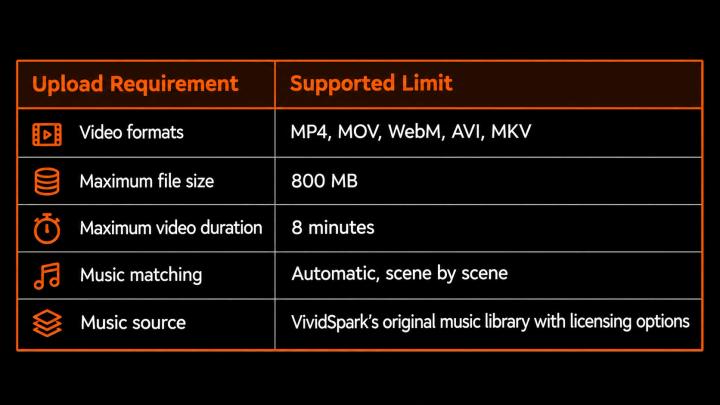
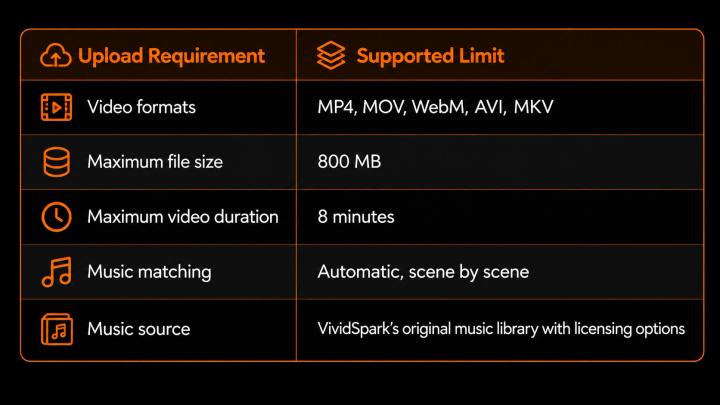
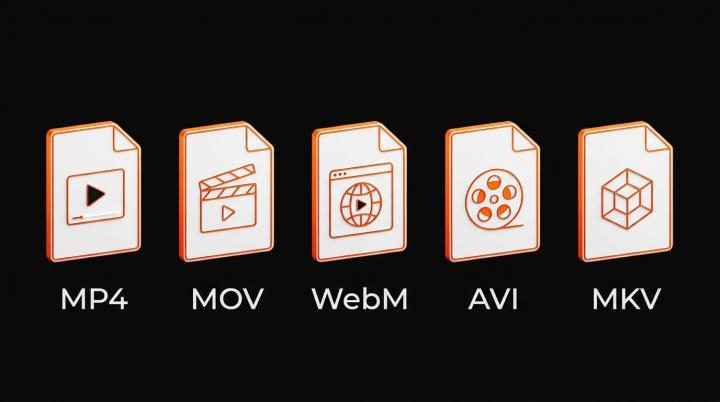
VividSpark AI Soundtrack supports five video formats: MP4, MOV, WebM, AVI, and MKV.
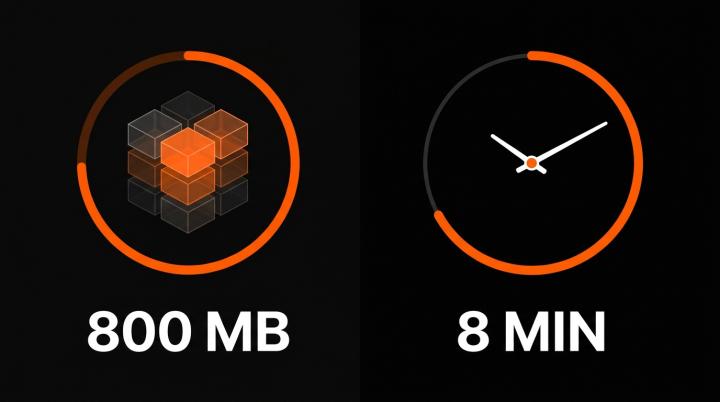
The current upload requirements are:
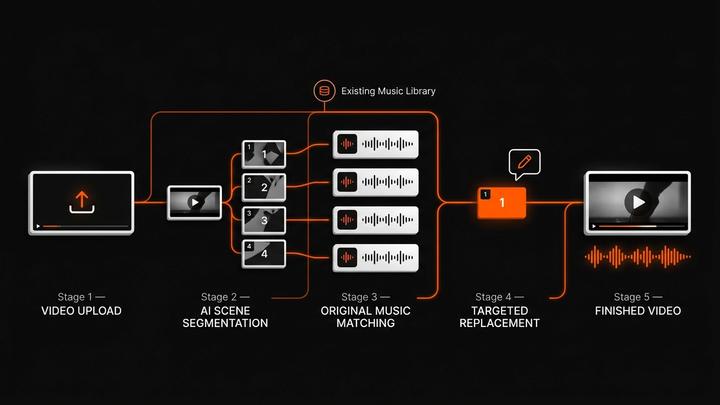
To use VividSpark AI Soundtrack, upload an existing video, let AI analyze its content and divide it into multiple segments, and allow the system to match suitable music to different sections.
You do not need to search for songs individually or manually arrange every music segment.
The basic workflow is:
Upload Video → AI Content Analysis → Automatic Segmentation → Music Matching → Preview and Refine → Export
If your video is larger than 800 MB or longer than eight minutes, you will need to prepare a smaller or shorter version before uploading.
For the latest technical requirements, visit the VividSpark Support Center or explore the AI Soundtrack feature page.
🎥 1. What Video Formats Does VividSpark AI Soundtrack Support?
VividSpark supports five common video formats, allowing creators to upload footage exported from different cameras, editing applications, and recording devices.
🎬 MP4: A Practical Default Choice
MP4 is one of the most widely used video container formats.
It is commonly used for social media videos, mobile recordings, tutorials, product demonstrations, and professionally edited content.
If you are unsure which format to export, MP4 is a sensible starting point because of its broad compatibility.
🍎 MOV: Common in Apple Video Workflows
MOV is Apple's QuickTime movie container format.
It is commonly encountered in footage exported from Apple devices and professional editing software.
If you already have a MOV video, there is no need to convert it simply because it is not MP4. VividSpark supports MOV uploads.
🌐 WebM: Designed for Web Video
WebM is a media container designed for modern web environments.
It commonly uses VP8 or VP9 video codecs and Vorbis or Opus audio codecs.
It is useful for web-based media workflows and can provide efficient video compression.
📁 AVI: A Traditional Video Container
AVI is an older multimedia container format that remains common in some desktop recording and editing workflows.
One important consideration is that AVI files can contain different video and audio codecs. If an AVI file encounters compatibility problems, exporting a new MP4 version may be a practical alternative.
🎞️ MKV: A Flexible Multimedia Container
MKV, based on the Matroska format, can contain multiple video and audio streams, subtitles, and metadata.
It is useful when working with more complex multimedia files.
However, the codec inside the MKV file also matters. The file extension alone does not describe every technical characteristic of the video.
🔬 2. Why Does Video Format Matter? Understanding Containers and Codecs
An important technical detail is that a video format and a video codec are not the same thing.
According to Mozilla Developer Network (MDN), a media container holds one or more media streams, such as video and audio, together with metadata.
A codec determines how the actual video or audio data is encoded and decoded.
In simple terms:
- Container: The structure that holds the video and audio.
- Video Codec: The technology used to compress and encode visual content.
- Audio Codec: The technology used to encode sound.
- Metadata: Information such as duration, dimensions, and media streams.
For example, an MP4 file may contain H.264 video and AAC audio.
Another MP4 file may use a different video codec.
Both files have the same extension, but their internal encoding can differ.
This is why a supported file extension does not necessarily mean every possible codec combination will behave identically.
MDN explains these differences in its technical guide:
MDN — Media Container Formats.
Recommended Video Export Settings
If you need to re-export a video because of upload or compatibility problems, MP4 with H.264 video and AAC audio is a practical general-purpose choice.
YouTube's official upload encoding guidance also recommends:
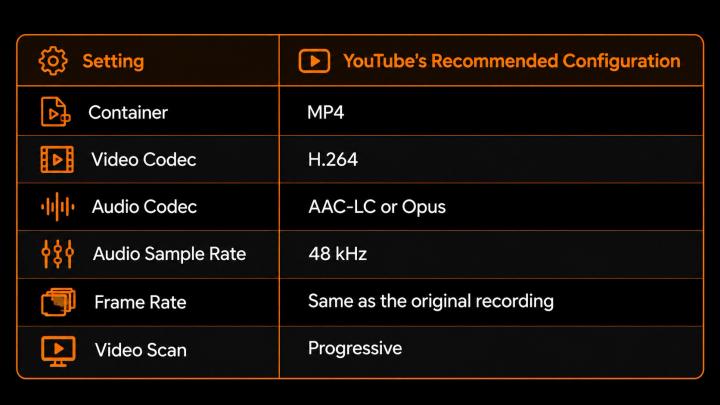
These are YouTube's recommended upload settings, not additional mandatory VividSpark requirements.
Source: YouTube — Recommended Upload Encoding Settings.
VividSpark's published upload requirements specify supported containers and file limits rather than a complete codec-by-codec compatibility matrix.
⏱️ 3. What Is the Maximum Video Length for VividSpark AI Soundtrack?
The maximum supported video duration is 8 minutes.
This limit is particularly relevant for creators who want to add music to:
- Short-form drama episodes.
- Cinematic short films.
- Travel vlogs.
- Product demonstrations.
- Social media videos.
- Tutorials and educational videos.
- Brand promotional videos.
Why does video duration matter?
AI soundtrack matching requires analyzing the video's content and identifying meaningful sections.
A longer video may contain more scene changes, emotional transitions, dialogue, and musical requirements.
For example, consider a six-minute short film:
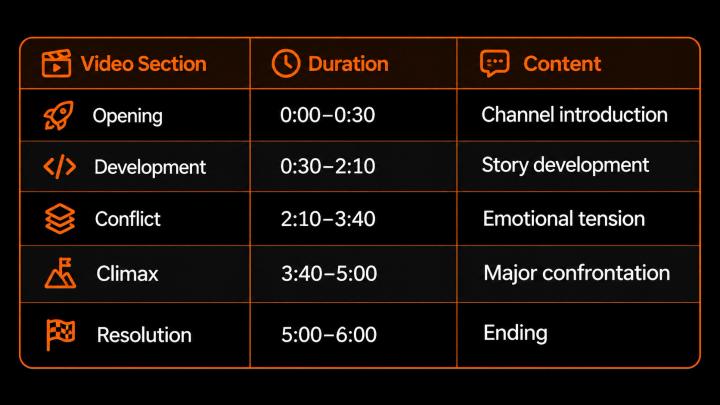
A soundtrack that follows these sections may need several different musical treatments rather than one continuous track.
VividSpark's eight-minute limit allows creators to process a range of short-form storytelling and video content within one upload.
If your video exceeds eight minutes, you can divide it into shorter sections using your preferred video editor before uploading.
When doing so, try to preserve complete narrative sections rather than cutting randomly in the middle of important dialogue or musical transitions.
📦 4. What Is the Maximum Upload File Size?
VividSpark's maximum upload file size is 800 MB.
Both the file-size limit and the eight-minute duration limit apply.
For example:
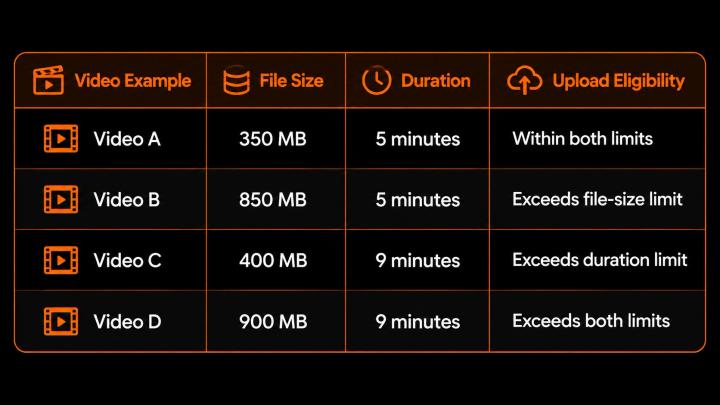
A common misunderstanding is that a video is acceptable as long as its duration is below eight minutes.
That is not enough. Its file size must also remain within 800 MB.
🧮 Why Can Two Videos of the Same Length Have Different File Sizes?
Video file size depends on several technical factors:
- Resolution.
- Frame rate.
- Video bitrate.
- Audio bitrate.
- Codec efficiency.
- Duration.
A high-resolution video with a high bitrate can be much larger than a lower-resolution video of exactly the same duration.
This relationship can be approximated using:
File Size (MB) ≈ Total Bitrate (Mbps) × Duration (seconds) ÷ 8
For example, consider an eight-minute video.
YouTube recommends approximately 8 Mbps for standard-frame-rate 1080p SDR uploads and 35–45 Mbps for standard-frame-rate 4K SDR uploads.
Using these figures:
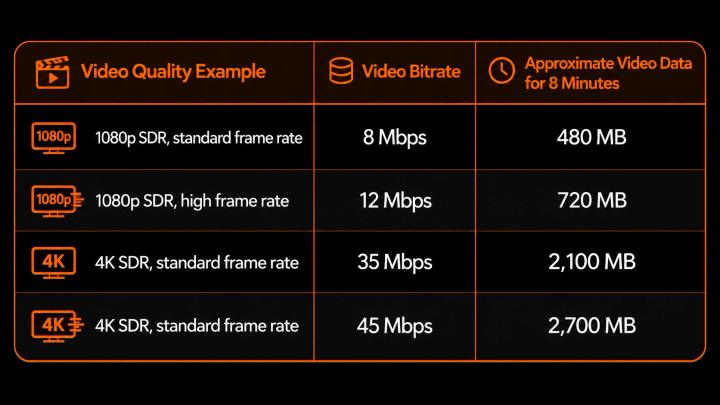
These are illustrative calculations based on YouTube's published bitrate recommendations. They exclude audio data and container overhead, and are not VividSpark export requirements.
The calculation reveals an important practical point:
An eight-minute 4K video can easily exceed VividSpark's 800 MB upload limit, even though its duration is acceptable.
If your video is too large, consider exporting a separate processing copy with a more efficient codec or a lower bitrate while retaining the original master file.
Avoid excessive compression, however, because it can reduce visual detail and image quality.
🎬 5. How Does VividSpark AI Soundtrack Work After You Upload a Video?
Uploading a video is only the first step.
The main purpose of VividSpark AI Soundtrack is to understand the video before selecting music.
Instead of requiring creators to manually search through music libraries, the system analyzes the content and matches existing licensed music to different sections.
The process works as follows.
Step 1: Upload Your Finished Video
Start with a video that has already been recorded and edited.
You can upload footage without background music or a video that already contains music you want to replace.
Step 2: AI Analyzes the Video
The system analyzes the video's:
- Scene changes.
- Emotional shifts.
- Visual content.
- Pacing and rhythm.
- Important narrative moments.
The purpose is to understand how the video develops instead of selecting music based only on its total duration.
Step 3: Automatically Divide the Video Into Segments
VividSpark automatically divides the uploaded video into multiple sections according to its content and scene structure.
For example, a short drama may contain:
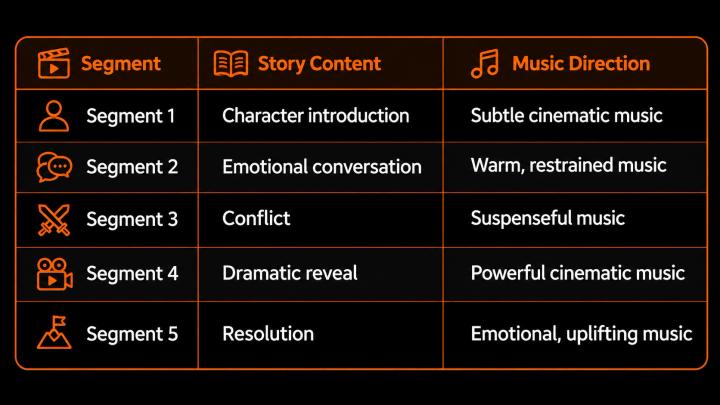
The purpose is to make music follow the story rather than forcing one soundtrack across the entire video.
Step 4: Match Existing Original Music to Each Segment
VividSpark selects suitable existing tracks from its own music library.
The AI does not compose or generate a new song during the matching process.
Instead, it analyzes the video and matches available music according to the content and emotional requirements of each segment.
This distinction matters because creators can preview actual existing music tracks rather than relying on newly generated audio.
Step 5: Replace a Specific Segment Using a Prompt
If the initial music selection does not fit a particular scene, you can specify the segment number in a natural-language prompt.
For example:
- "Replace segment 2 with warmer and more emotional piano music."
- "Change segment 3 to a darker, suspenseful soundtrack."
- "Replace segment 4 with a more energetic cinematic track."
VividSpark then matches replacement music from its own original music library to the specified segment.
You do not need to search for another song manually or rebuild the entire soundtrack just because one section needs improvement.
Step 6: Preview and Export the Finished Video
After reviewing the music selections and making any necessary adjustments, preview the complete video.
Check whether the music matches the scenes, whether transitions feel natural, and whether dialogue and important original sounds remain clear.
Once satisfied, export the finished video.
🎙️ 6. Can You Upload a Video That Already Has Background Music?
Yes.
You do not need to remove the original soundtrack before uploading.
VividSpark AI Soundtrack supports two main audio workflows.
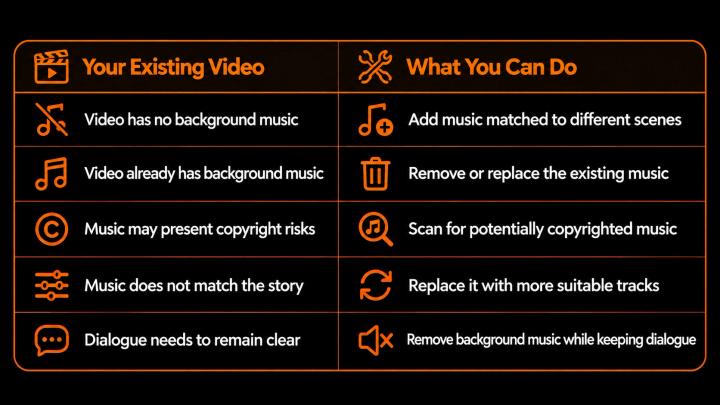
For example, if you have a finished travel vlog containing an unsuitable soundtrack, you can use the removal and replacement workflow rather than rebuilding the entire video.
VividSpark supports removing existing background music while keeping dialogue, then matching replacement music to the video's content.
Copyright scanning helps identify potential risks, but it does not guarantee that a video will never receive a platform copyright claim.
If a potential issue arises, you can contact the support team for assistance.
Learn more: VividSpark — Fix Copyright Music.
🛠️ 7. Common Video Upload Problems and How to Fix Them
If your video cannot be uploaded or processed correctly, check the following items.
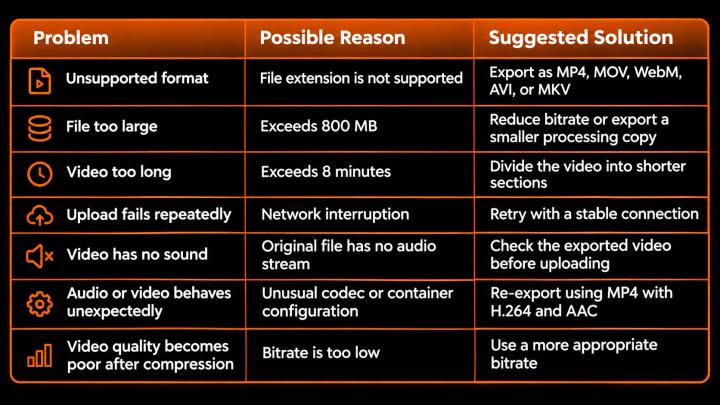
Important: Do Not Simply Rename the File Extension
Changing a filename from .avi to .mp4 does not convert the actual video format.
The container and encoded streams remain unchanged.
If conversion is necessary, use a proper video editor or transcoding tool to export a new file.
Keep the Original Master File
If you need to compress or convert a video to meet the upload requirements, keep the original high-quality version.
Use a separate processing copy for soundtrack matching.
This is particularly useful for professional projects, client work, and short films where the original footage may be needed for future editing.
💡 8. How to Prepare Your Video Before Uploading: A Practical Checklist
Before uploading, use this checklist:
- The video uses MP4, MOV, WebM, AVI, or MKV.
- The file size is no more than 800 MB.
- The duration is no more than 8 minutes.
- The video plays correctly on your device.
- Dialogue and important original audio are present.
- The video has been exported without unnecessary compression.
- The correct final edit is being uploaded.
- The original master file has been backed up.
For a straightforward upload, MP4 with H.264 video and AAC audio is a practical starting point.
If you are preparing a professional short film or commercial video, prioritize preserving the visual quality of the source material while meeting the upload limits.
🚀 9. Why VividSpark AI Soundtrack Is More Than a Video Upload Tool
The value of a soundtrack workflow is not simply accepting different file formats.
It is what happens after the video is uploaded.
Traditional editing often requires creators to search for music, listen to multiple tracks, place them manually on a timeline, and adjust each section individually.
VividSpark takes a different approach.
It starts with the video itself, automatically analyzes the content, divides the video into multiple segments, and matches existing original music from its own music library.
If a particular section does not sound right, creators can specify the numbered segment they want to replace through a natural-language prompt.
This makes the process more targeted and reduces the need for repeated manual music searches.
VividSpark also supports removing or replacing existing background music and detecting potentially copyrighted music.
The goal is to make the journey from a finished video to a complete soundtrack simpler and more organized.
Explore the feature: VividSpark AI Soundtrack — Add Music to Video.
For detailed upload specifications and additional help, visit the VividSpark Support Center.
❓ FAQ
01 Which video format is best for uploading?
MP4 is a practical default because it is widely supported. MP4 with H.264 video and AAC audio is a common export configuration, although VividSpark accepts five different container formats.
02 What happens after I upload my video?
AI analyzes the video content, identifies scene changes and emotional shifts, divides the footage into multiple segments, and matches existing licensed music to the different sections.
03 Does VividSpark generate new music after analyzing my video?
No. VividSpark AI Soundtrack matches your video with existing original tracks from its own licensed music library. It does not compose or generate a new song during the matching process.
04 Can I change the music in only one segment?
Yes. You can specify the numbered segment you want to replace using a natural-language prompt. VividSpark then matches another suitable track from its original music library to that section.
05 How long are uploaded videos stored?
According to VividSpark's product policy, uploaded video files are automatically deleted after 24 hours. Keep your own copy of the original video and download your finished result for safekeeping.
🏁 Conclusion
Preparing a video for AI soundtrack matching is straightforward once you understand the supported formats, file-size limits, and processing workflow.
VividSpark supports MP4, MOV, WebM, AVI, and MKV videos, with a maximum file size of 800 MB and a maximum duration of eight minutes.
The recommended preparation process is:
Check the Format → Check the File Size → Check the Duration → Upload → AI Scene Analysis → Music Matching → Preview → Export
Understanding video containers, codecs, bitrates, and compression can also help prevent upload problems. Technical documentation from MDN and YouTube demonstrates that the file extension alone does not determine video compatibility or file size.
Once uploaded, VividSpark AI Soundtrack goes beyond simply adding one song to an entire video. It analyzes the content, divides the footage into meaningful segments, matches existing original music from its own library, and allows creators to replace individual sections through natural-language prompts.
Whether you are working on a short drama, travel vlog, cinematic short film, product video, or social media content, the process starts with one correctly prepared video.
Upload your video. Let AI understand your scenes. Match the music to your story.